
【Godot教程】零基础带你从小白到超神
看不到代码请重新刷新此页面
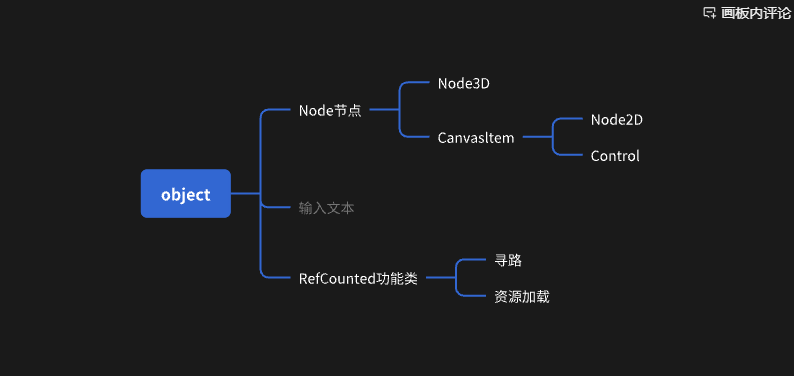
生命周期方法
using Godot;
using System;

//生命周期方法,脚本从生效-》销毁失效 过程中,会自动调用的几个重要的方法
public partial class MYSprite : Sprite2D
{
    //倒计时,设定一个计时器
    float timer = 5;

    //节点添加到节点树中的时候调用
    //// 当节点需要自定义绘制时调用(如绘制形状、文本等)
    public override void _Draw()
    {
        //base._EnterTree();
        GD.Print("entertree");
    }

    //节点加载完成,这里初始化
    /// 当节点添加到场景并准备好时调用,适合做初始化操作
    public override void _Ready()
    {
        GD.Print("ready");
    }

    //每帧调用
    // 每一帧都会调用,适合处理与帧相关的逻辑(如动画、输入检测等)
    public override void _Process(double delta)
    {
        //游戏逻辑
        //计时器开始倒计时
        timer -= (float)delta;

        if (timer <= 0)
        {
            timer = 100;
            //销毁节点
            this.QueueFree();
         }
    }

    //每次物理系统计算,会调用一次
    // 每一物理帧调用,适合处理物理相关的逻辑(如移动、碰撞检测等)
    public override void _PhysicsProcess(double delta)
    {
        base._PhysicsProcess(delta);
        //物理逻辑
    }

     // 当节点被加入到场景树时调用,早于 _Ready,适合做资源加载等操作
    public override void _EnterTree()
    {

    }
}
键鼠输入方式
using Godot;
using System;

public partial class InputTest : Node
{
    public override void _Ready()
    {
        //鼠标设置:显示、隐藏、限制在游戏窗口
        Input.MouseMode = Input.MouseModeEnum.ConfinedHidden;
    }

    public override void _Process(double delta)
    {
        //是否按下键盘的B键
        if (Input.IsKeyPressed((Key.B)))
        {
            GD.Print("按下了B键");
        }
    }
    public override void _Input(InputEvent @event)
    {
        base._Input(@event);
        ///如果是键盘事件
        if (@event is InputEventKey)
        {
            var key = @event as InputEventKey;
            //判断我们当前是否按下的是V键
            if (key.Keycode == Key.V)
            {
                //判断按下的V键是否是按下还是抬起
                if (key.IsEcho())
                {
                    GD.Print("持续V键");
                }
                //判断当前是否是按下瞬间
                else if (key.IsPressed())
                {
                    GD.Print("按起了V键");
                }
                //判断当前是否是抬起瞬间
                else if (!key.IsPressed())
                {
                    GD.Print("抬起了V键");
                }

            }

        }

    }
}
用输入映射办法控制键鼠
public partial class InputTest : Node
{
    public override void _Ready()
    {
        //鼠标设置:显示、隐藏、限制在游戏窗口
        Input.MouseMode = Input.MouseModeEnum.ConfinedHidden;
    }

    public override void _Process(double delta)
    {
        // 检查是否按下键盘的B键
        if (Input.IsKeyPressed((Key.B)))
        {
            GD.Print("按下了B键");
        }
        // 检查是否刚刚触发了名为“跳跃”的虚拟按键(如刚按下空格)
        if (Input.IsActionJustPressed("跳跃"))
        {
            GD.Print("按下跳跃");
        }
        // 检查“跳跃”虚拟按键是否处于按下状态(持续按住)
        if (Input.IsActionPressed("跳跃"))
        {
            GD.Print("抬起跳跃");
        }
        // 检查“跳跃”虚拟按键是否刚刚释放(刚松开)
        if (Input.IsActionJustReleased("跳跃"))
        {
            GD.Print("结束跳跃");
        }
        //获取按键力度
        //float s = Input.GetActionStrength("跳跃");
        //获取一个x轴
        float horizontal = Input.GetAxis("左", "右");
        GD.Print(horizontal);
        //获取上下左右组成的一个向量
        Vector2 dir = Input.GetVector("左", "右", "上", "下");
        GD.Print(dir);
}
暂时无法在飞书文档外展示此内容
怎么去切换场景
暂时无法在飞书文档外展示此内容
using Godot;
using System;

public partial class InputText : Node
{
    //新场景
    //[Export] 是 Godot C# 的一个特性(Attribute),用于把字段或属性暴露到编辑器中。
    [Export]
    public PackedScene NewScene;
    public override void _Ready()
    {

    }
    public override void _Process(double delta)
    {
        //按下键盘左键
        if (Input.IsActionJustPressed("左"))
        {
            //获取场景树
            SceneTree st = this.GetTree();
            //跳转场景
            //st.ChangeSceneTo("res://game2.tscn");
            //跳转场景2
            st.ChangeSceneToPacked(NewScene);
        }
        if (Input.IsActionJustPressed("右"))
        {
            //实例化新场景,并返回一个根节点
            Node node = NewScene.Instantiate();
            //添加进来
            this.GetTree().CurrentScene.AddChild(node);
        }
    }

}
向量
标量:只有大小的量。1 85 888 999
向量:机油大小,也有方向.
向量的模:向量的大小。
单位向量:大小为1的向量
单位化,归一化:把向量转为单位向量的过程
用脚本控制向量
using Godot;
using System;

public partial class Sprite2DText : Sprite2D
{
    public override void _Ready()
    {
        //CanvasItem 常用属性
        //是否显示
        this.Visible = true;
        //渲染顺序
        this.ZIndex = 0;
        this.ZAsRelative = false;

        //Node2D 常用属性
        //位置
        this.Position = new Vector2(500, 300);
        //旋转
        this.RotationDegrees = 0.1f;
        //缩放
        this.Scale = new Vector2(2, 2);
        //倾斜
        //this.Sew = 30;
    }
    public override void _Process(double delta)
    {
        //获取鼠标位置
        var pos = GetGlobalMousePosition();
        //看向某个点
        LookAt(pos);
    }

}
用脚本加载精灵和动画帧率
using Godot;
using System;
using System.Security.Cryptography.X509Certificates;

public partial class Sprite2DText : Sprite2D
{
    [Export]
    public  Texture2D newTexture;

    //计时器
    double timer = 0;

    public override void _Ready()
    {
        //加载纹理
        //this.Texture = GD.Load<Texture2D>("res://icon.svg");
        this.Texture = newTexture;
        //中心点还是左上角
        this.Centered = false;
        //偏移
        this.Offset = new Vector2(100, 100);
        //翻转
        this.FlipH = true;
        this.FlipV = true;
        this.Hframes = 2;
        this.Vframes = 2;
        this.Frame = 0;
    }
    public override void _Process(double delta)
    {
        //计时
        timer += delta;
        //当超过1秒就换一个图像
        if (timer > 1)
        {
            //计算器重置
            timer = 0;
            // 获取下一针
            int index = this.Frame + 1;
            if (index > 3) index = 0;
            //让精力加载下一针
            this.Frame = index;
        }
    }

}
物品分组
Sprite2DText
using Godot;
using System;
using System.Security.Cryptography.X509Certificates;

public partial class Sprite2DText : Sprite2D
{

    public override void _Ready()
    {

    }
    public override void _Process(double delta)
    {
        if (Input.IsActionJustPressed("右"))
        {
            //获取分组中的节点
            var enemys = this.GetTree().GetNodesInGroup("敌人");
            //遍历节点
            foreach (var enemy in enemys)
            {
                //销毁
                enemy.QueueFree();
            }

        }
        if (Input.IsActionJustPressed("左"))
        {
            //给一个分组中的节点发消息
            this.GetTree().CallGroup("敌人", "test");
        }
        if (Input.IsActionJustPressed("上"))
        {
            //将当前的节点加到敌人分组
            this.AddToGroup("敌人");
        }
    }
}
enemys.cs
using Godot;
using System;
using System.Security.Cryptography.X509Certificates;

public partial class enemys : Node
{
    public override void _Ready()
    {

    }
    public void test()
    {
        GD.Print("我是敌人");
    }
        public override void _Process(double delta)
    {

    }
}
通过按键让精灵消失
动态连接
using Godot;
using System;

public partial class MyButton : Button
{
    public override void _Ready()
    {
        //脚本动态链接信号
        this.Connect("pressed",new Callable(this,"ButtonClick"));
    }
    public override void _Pressed()
    {

    }
    public void ButtonClick()
    {
        //找到精力并删除
        Node2D node = GetNode<Node2D>("/root/Node2D/Sprite2D");
        node.QueueFree();
    }
}
通过信号去连接精灵
using Godot;
using System;

public partial class MyButton : Button
{
    public override void _Ready()
    {
        // //脚本动态链接信号
        // this.Connect("pressed",new Callable(this,"ButtonClick"));
    }
    public override void _Pressed()
    {

    }
    public void ButtonClick()
    {
        //找到精力并删除
        Node2D node = GetNode<Node2D>("/root/Node2D/Sprite2D");
        node.QueueFree();
    }
}
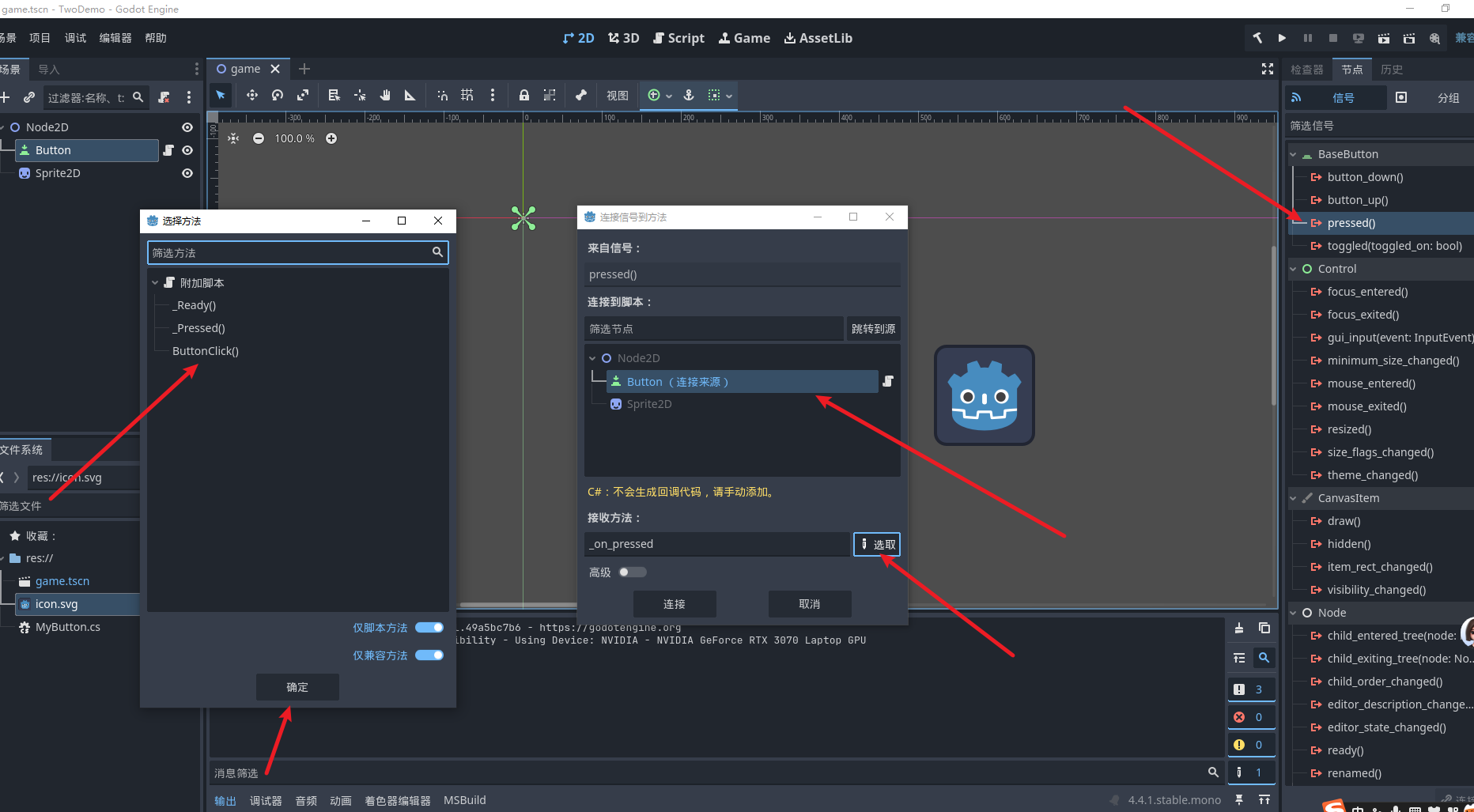
自定义信号
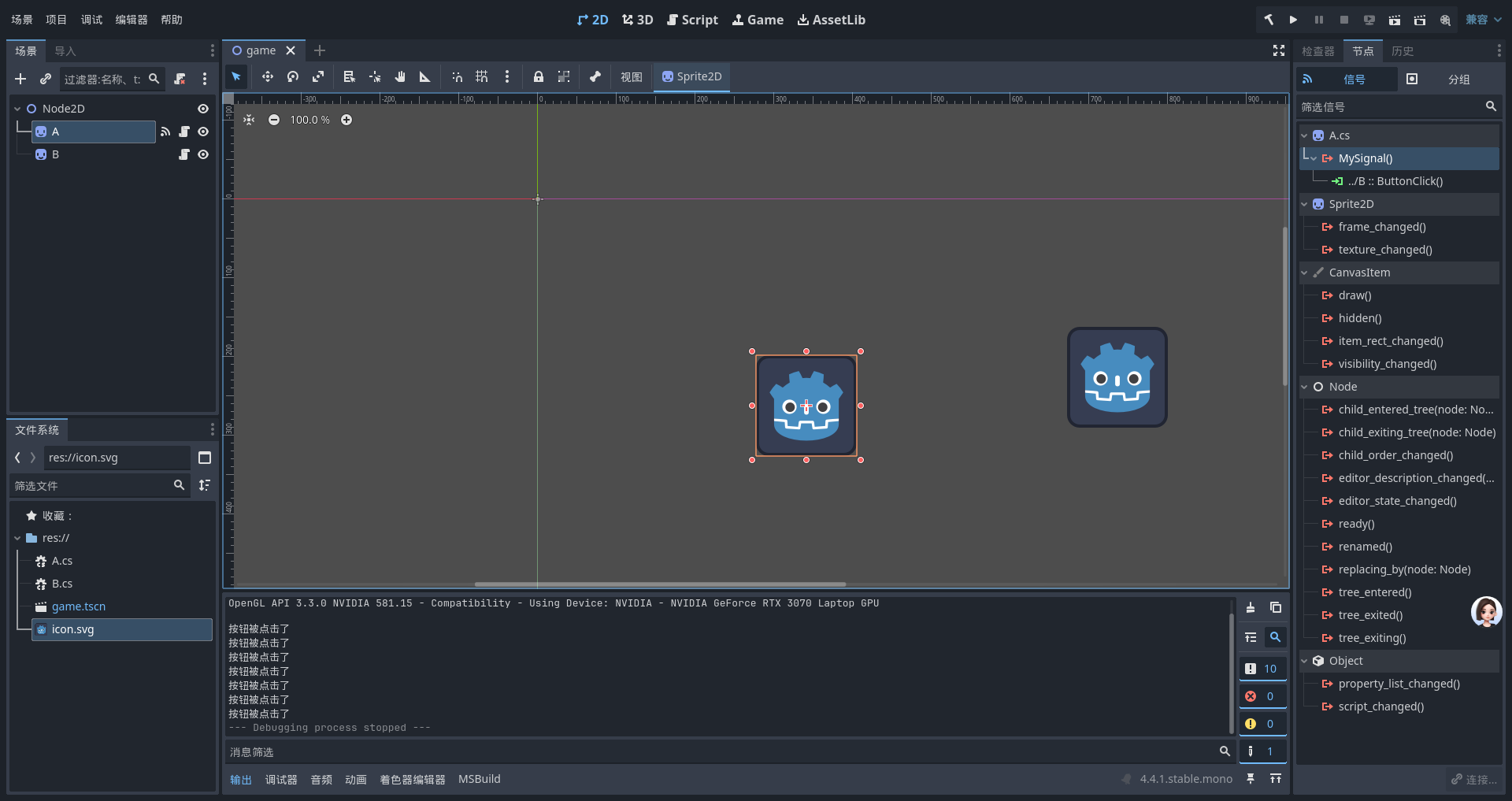
A和B都要脚本添加
A
using Godot;
using System;

public partial class A : Sprite2D
{
    [Signal]
    public delegate void MySignalEventHandler();
    public override void _Ready()
    {
        //信号

    }
    public override void _Process(double delta)
    {
        if (Input.IsActionJustPressed("左"))
        {
            //发射信号
            EmitSignal("MySignal");
        }
    }
}
B
using Godot;
using System;

public partial class B : Sprite2D
{
    public void ButtonClick()
    {
        GD.Print("按钮被点击了");
    }
}
用脚本控制动画
加精灵图
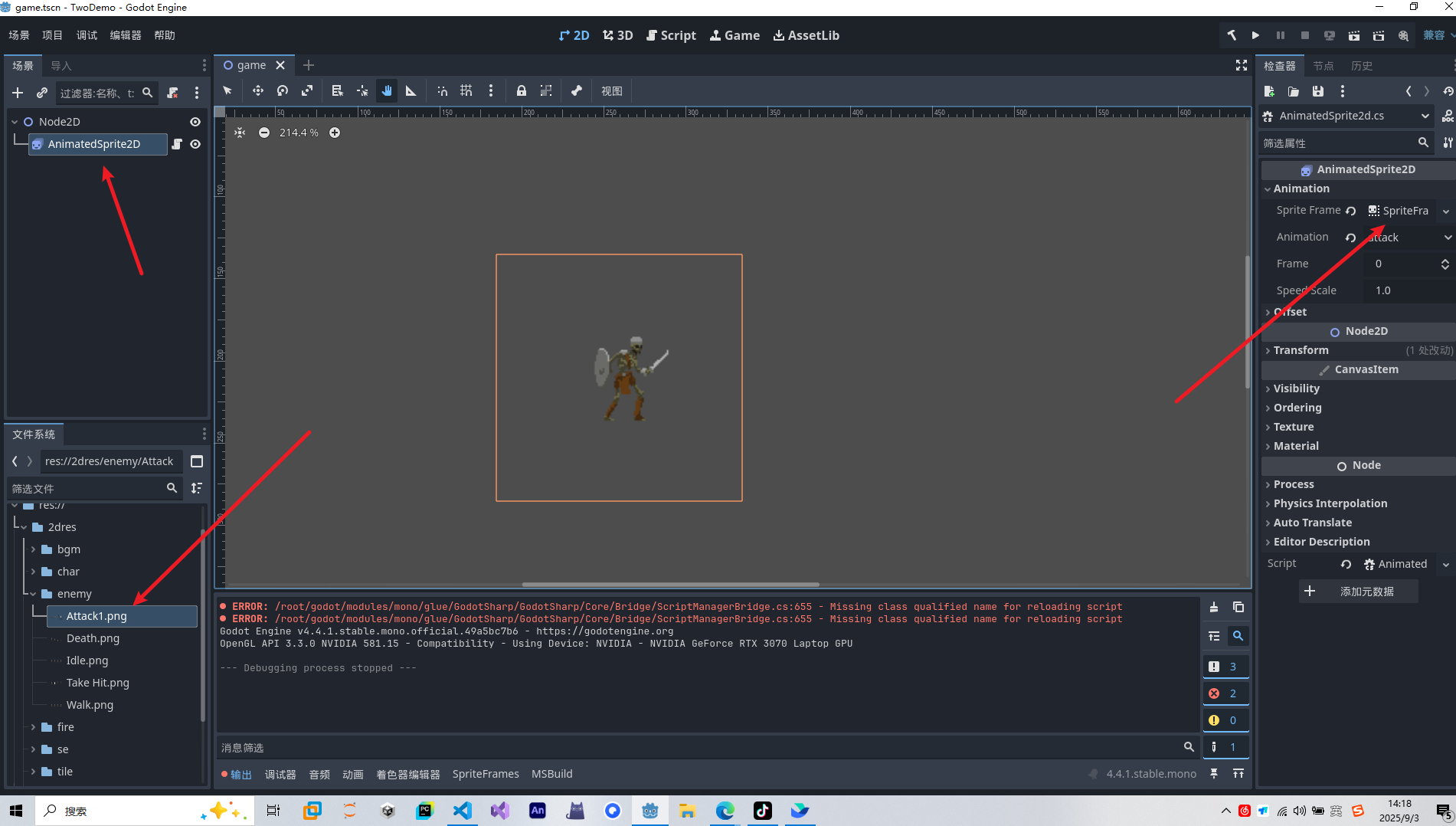
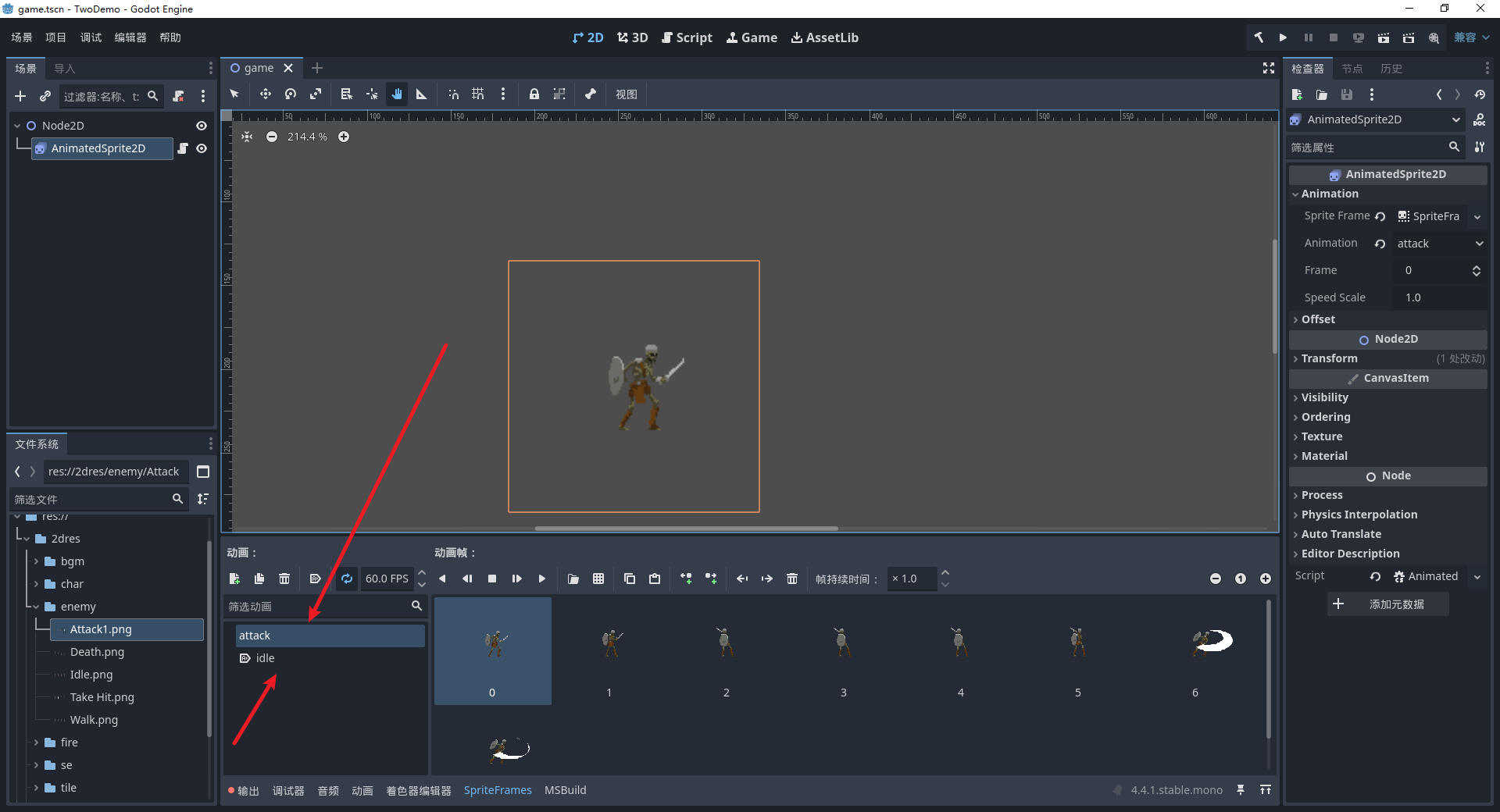
using Godot;
using System;

public partial class AnimatedSprite2d : AnimatedSprite2D
{
    public override void _Ready()
    {

    }
    public override void _Process(double delta)
    {
        if (Input.IsActionJustPressed("左"))
        {
            Play("idle");
        }
        if (Input.IsActionJustReleased("右"))
        {
            Play("attack");
        }
    }
}
用AnimationPlayer控制

using Godot;
using System;

public partial class AnimationPlayer : Godot.AnimationPlayer
{
    public override void _Process(double delta)
    {
        if (Input.IsActionJustPressed("左"))
        {
            this.Play("idle");
        }
        if (Input.IsActionJustPressed("右"))
        {
            this.Play("run");
        }
    }

}
用脚本控制音量播放
delta
代表每帧经过的时间(秒),用于处理与时间相关的逻辑。
this.Playing
表示当前音频是否正在播放(true为正在播放,false为未播放)。
this.StreamPaused
表示当前音频是否处于暂停状态(true为暂停,false为未暂停)。
this.Stream
虽然代码中未直接使用,但 AudioStreamPlayer 有此属性,代表当前播放的音频流资源。
这些变量都是 AudioStreamPlayer 类的属性或方法,用于控制和判断音频的播放状态。
using Godot;
using System;

public partial class AudioStreamPlayertest : AudioStreamPlayer
{
    public override void _Ready()
    {

    }
    public override void _Process(double delta)
    {
        if (Input.IsActionJustPressed("左"))
        {
            if (this.Playing == false)
            {
                //播放
                this.Play();
            }
        }
        if (Input.IsActionJustPressed("右"))
        {

            //判断当前是否在播放
            this.StreamPaused = true;

        }
        if (Input.IsActionJustPressed("下"))
        {
            //继续播放
            this.StreamPaused = false;
        }

    }
}
动态创建脚本
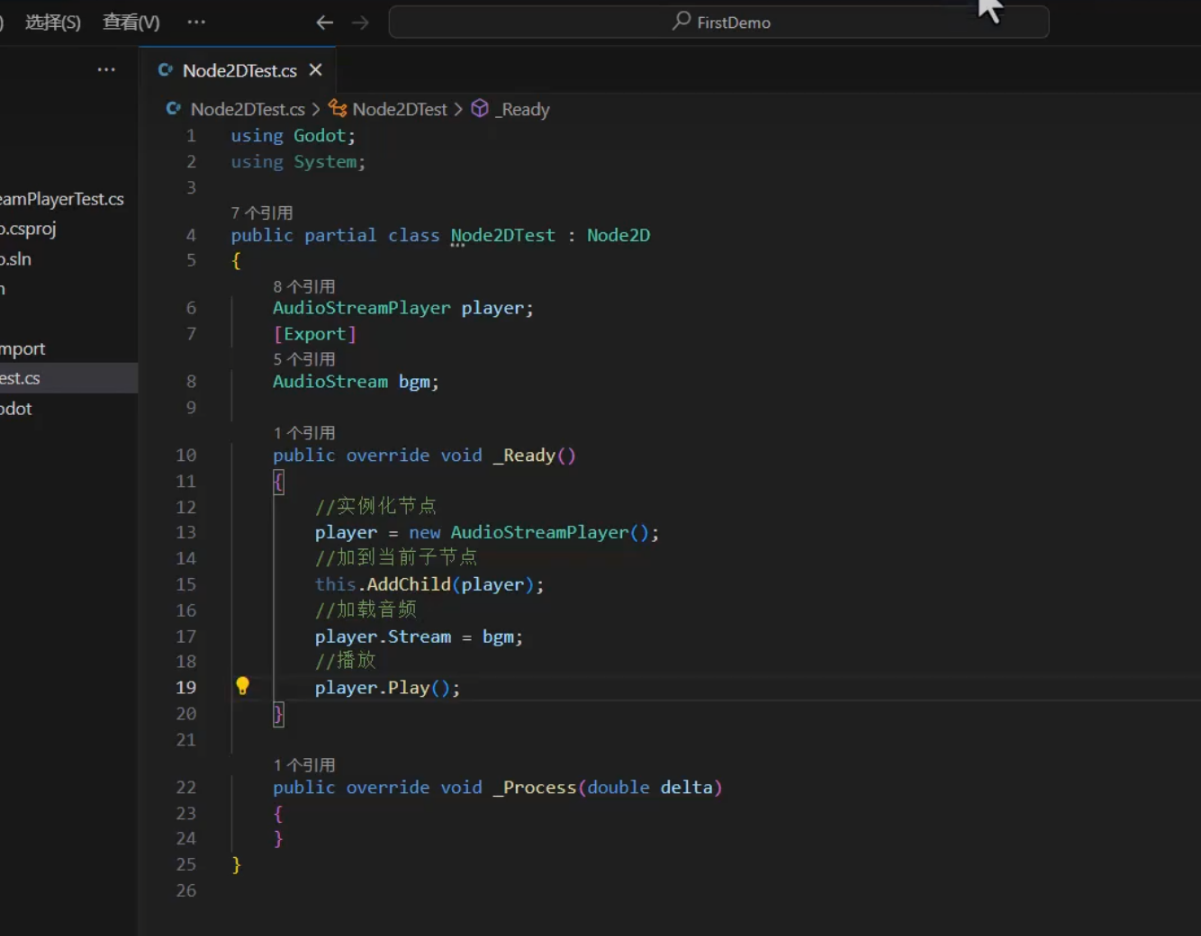
射线碰撞脚本
你选中的代码是 RayCast2dtest 类中的 _PhysicsProcess 方法的一部分:
public override void _PhysicsProcess(double delta)
{
    base._PhysicsProcess(delta);
    //按下左,判断射线距离
    GD.Print(delta);
}
解释:
public override void _PhysicsProcess(double delta)这是 Godot 引擎每一帧物理更新时自动调用的方法,delta表示距离上一帧经过的时间(秒)。base._PhysicsProcess(delta);调用父类(RayCast2D)的物理处理方法,保证父类逻辑正常执行。GD.Print(delta);在输出窗口打印当前帧的delta时间,方便调试和观察每帧的时间间隔。
注释“按下左,判断射线距离”
目前代码只打印了 delta,还没有实现“按下左键时判断射线距离”的功能。如果你想实现按下某个键时检测射线长度,可以在这里添加相关逻辑。
2
using Godot;
using System;

public partial class RayCast2dtest : RayCast2D
{

    public override void _Process(double delta)
    {
        base._Process(delta);

    }
    public override void _PhysicsProcess(double delta)
    {
        base._PhysicsProcess(delta);
        if (Input.IsActionJustPressed("左"))
        {
            if (this.IsColliding())
            {
                //拿到碰撞的区域
                Area2D area2D = this.GetCollider() as Area2D;
                GD.Print("检测到了:" + area2D.Name);

            }
            else
            {
                GD.Print("没有检测到");
            }

        }
    }

}
这段代码的作用是: 在每一帧的物理处理过程中(_PhysicsProcess),当玩家按下“左”这个输入动作时,检测射线是否碰撞到了物体。
具体流程如下:
按下“左”键 通过 Input.IsActionJustPressed("左") 检测玩家是否刚刚按下了“左”这个动作。
检测射线碰撞 使用
this.IsColliding()判断当前射线是否与某个物体发生了碰撞。获取碰撞对象 如果发生碰撞,
this.GetCollider()会返回碰撞到的对象。 这里用 as Area2D 把它转换为 Area2D 类型,并打印出该区域的名字。没有碰撞 如果没有碰撞,则输出“没有检测到”。
制作人物与地面的自由落地
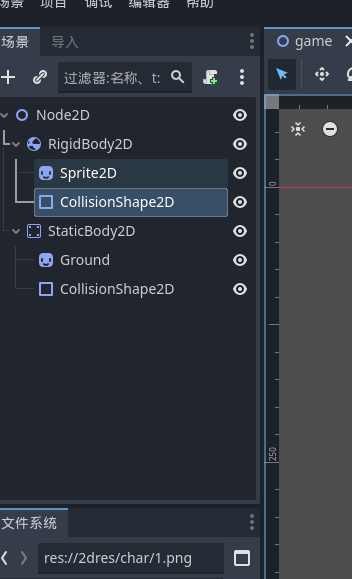
RigidBody2D横板角色控制----物体撞击
左右
using Godot;
using System;

public partial class RigidBody2dTest22 : RigidBody2D
{
    public override void _Ready()
    {
        //锁定旋转
        this.LockRotation = true;

    }
    public override void _PhysicsProcess(double delta)
    {
        base._PhysicsProcess(delta);
        //通过获取水平轴左右移动
        float horizontal = Input.GetAxis("左", "右");
        //速度
        this.LinearVelocity = new Vector2(horizontal * 200, LinearVelocity.Y);
    }
}
using Godot;
引入 Godot 游戏引擎的核心命名空间,使代码可以使用 Godot 提供的类和方法(如
RigidBody2D、Vector2等)。
using System;
引入 C# 标准库命名空间,提供基础系统功能支持。
public partial class RigidBody2dTest22 : RigidBody2D
定义一个名为
RigidBody2dTest22的类,继承自 Godot 的RigidBody2D(2D 刚体节点)。partial表示这是一个部分类,允许代码分散在多个文件中。
public override void _Ready()
重写 Godot 节点的
_Ready()方法,当节点进入场景树并准备好时调用(类似初始化方法)。
this.LockRotation = true;
LockRotation是RigidBody2D的属性,设置为true时锁定刚体旋转,使其不会因物理作用而转动。this指代当前类的实例(即当前刚体节点)。
public override void _PhysicsProcess(double delta)
重写物理帧更新方法,每帧按物理时间步长执行(适合处理物理相关逻辑)。
delta参数表示当前帧与上一帧的时间间隔(秒),用于确保运动速度不受帧率影响。
base._PhysicsProcess(delta);
调用父类
RigidBody2D的_PhysicsProcess方法,确保基础物理逻辑正常运行。
float horizontal = Input.GetAxis ("左", "右");
Input.GetAxis()是 Godot 的输入处理方法,返回 - 1 到 1 之间的值:按下 "左" 键时返回 - 1,按下 "右" 键时返回 1,同时按下或都不按返回 0。
获取水平方向的输入值并存储在
horizontal变量中。
this.LinearVelocity = new Vector2(horizontal * 200, LinearVelocity.Y);
LinearVelocity是RigidBody2D的属性,表示刚体的线速度(Vector2 类型,包含 X 和 Y 分量)。新建
Vector2对象,X 分量为水平输入乘以 200(控制左右移动速度),Y 分量保持当前竖直速度(不改变重力等物理效果)。通过设置线速度使刚体在水平方向移动,同时保留竖直方向的物理运动(如下落)。
这段代码的功能是:创建一个锁定旋转的 2D 刚体,通过 "左"/"右" 键控制其水平移动,同时保持竖直方向的物理效果(如受重力影响下落)。
跳跃
        //如果跳跃
        if(Input.IsActionJustPressed("跳跃"))
        {
            this.LinearVelocity = new Vector2(LinearVelocity.X, -300);
        }
如何让玩家不连跳
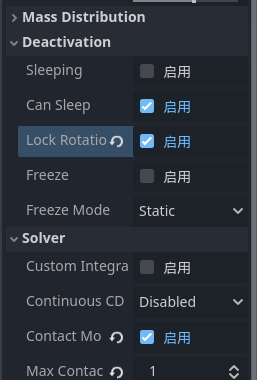
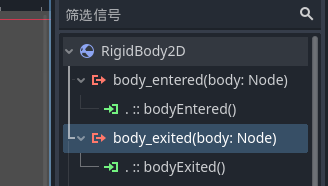
跳跃逻辑:
if (Input.IsActionJustPressed("跳跃") && isGround == true)
{
    this.LinearVelocity = new Vector2(LinearVelocity.X, -300);
}
这部分代码检测玩家是否按下了 "跳跃" 动作键(需要在 Godot 的输入映射中提前设置)
同时判断角色是否在地面上(
isGround == true),防止角色在空中多次跳跃当满足条件时,设置角色的线速度(LinearVelocity),Y 轴方向设为 - 300(负值通常表示向上,因为 Godot 中 Y 轴向下为正方向)
X 轴保持原有的水平速度,确保跳跃时不影响水平移动
地面检测 - 进入碰撞:
public void bodyEntered(Node body)
{
    isGround = true;
}
这是 Godot 的碰撞检测回调函数,当角色与其他碰撞体(通常是地面)发生碰撞时调用
此时将
isGround设为true,表示角色已接触地面,允许跳跃
地面检测 - 离开碰撞:
public void bodyExited(Node body)
{
    isGround = false;
}
地面状态变量:
private bool isGround;用于记录角色当前是否在地面上的状态变量
初始值未显式设置,默认为
false
整体逻辑说明: 这段代码实现了一个基本的平台跳跃机制,只有当角色站在地面上时(isGround == true),玩家按下跳跃键才能让角色向上跳跃。通过碰撞检测自动更新角色是否在地面上的状态,从而防止角色进行二段跳或空中跳跃。
在实际使用时,需要确保角色节点(通常是 KinematicBody2D)已经正确设置了碰撞体,并且地面也有对应的碰撞体,这样bodyEntered和bodyExited回调才能正常工作。
总代码
using Godot;
using System;

public partial class RigidBody2dTest22 : RigidBody2D
{

    private bool isGround;
    public override void _Ready()
    {
        //锁定旋转
        this.LockRotation = true;
        //如果碰撞检测

    }
    public override void _PhysicsProcess(double delta)
    {
        base._PhysicsProcess(delta);
        //通过获取水平轴左右移动
        float horizontal = Input.GetAxis("左", "右");
        //速度
        this.LinearVelocity = new Vector2(horizontal * 200, LinearVelocity.Y);
        //如果跳跃
        if (Input.IsActionJustPressed("跳跃") && isGround == true)
        {
            this.LinearVelocity = new Vector2(LinearVelocity.X, -300);
        }
    }

    public void bodyEntered(Node body)
    {
        isGround = true;

    }

    public void bodyExited(Node body)
    {
        isGround = false;
    }
}
CharcterBody2D控制角色
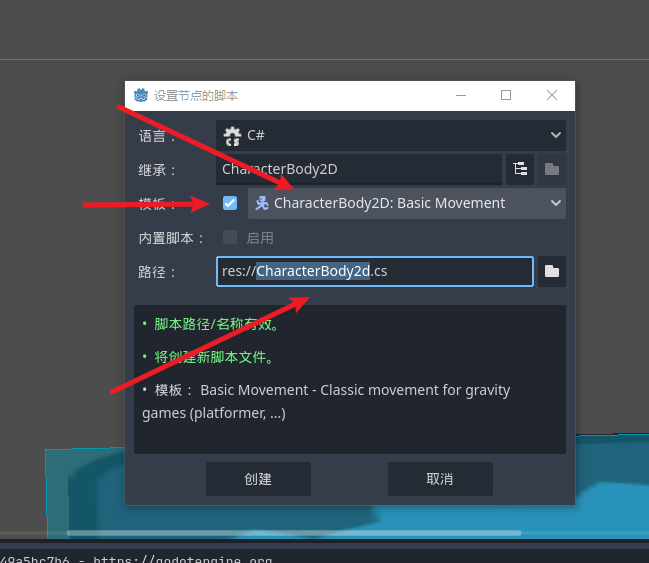
这段代码是使用 Godot 引擎(C# 版本)编写的 2D 角色控制器脚本,继承自 CharacterBody2D 节点,实现了基本的角色移动、跳跃和重力物理效果。下面是详细解析:
类与继承
csharp
public partial class CharacterBody2dTest : CharacterBody2D脚本类
CharacterBody2dTest继承自 Godot 内置的CharacterBody2D节点CharacterBody2D是 Godot 中用于 2D 角色移动的专用节点,内置了物理碰撞和移动相关的功能partial关键字是 Godot C# 脚本的特性,用于与引擎生成的代码分离
常量定义
csharp
public const float Speed = 300.0f; // 角色移动速度public const float JumpVelocity = -400.0f; // 跳跃初速度(负值表示向上)定义了角色移动和跳跃的核心参数,便于后续调整
JumpVelocity为负值是因为 Godot 中 Y 轴向下为正方向,负值表示向上运动
物理帧更新方法
csharp
public override void _PhysicsProcess(double delta)_PhysicsProcess是 Godot 的物理帧更新回调,用于处理物理相关逻辑与普通的
_Process不同,它的更新频率与物理引擎同步(默认 60 次 / 秒),适合处理移动、碰撞等物理行为delta参数表示当前帧与上一帧的时间间隔,用于确保不同性能设备上的运动速度一致
重力处理
csharp
Vector2 velocity = Velocity;  // 获取当前速度// 当不在地面上时,应用重力if (!IsOnFloor()){
velocity += GetGravity() * (float)delta;}Velocity是CharacterBody2D的属性,表示当前速度(包含 X 轴水平速度和 Y 轴垂直速度)IsOnFloor()是CharacterBody2D的方法,用于检测角色是否站在地面上(依赖碰撞体设置)GetGravity()获取项目设置中定义的重力加速度,通过乘以delta确保重力效果与时间同步
跳跃逻辑
csharp
// 当按下跳跃键且在地面上时,执行跳跃if (Input.IsActionJustPressed("ui_accept") && IsOnFloor()){
velocity.Y = JumpVelocity;}Input.IsActionJustPressed("ui_accept")检测 "确认" 动作是否被按下(需要在 Godot 输入映射中配置,通常对应 Enter 键或空格键)只有当角色在地面上(
IsOnFloor()为 true)时才能跳跃,防止空中多次跳跃跳跃时直接设置 Y 轴速度为
JumpVelocity(向上的初速度)
水平移动处理
csharp
// 获取输入方向(左右移动)Vector2 direction = Input.GetVector("ui_left", "ui_right", "ui_up", "ui_down");if (direction != Vector2.Zero){// 有输入时,设置水平速度
    velocity.X = direction.X * Speed;}else{// 无输入时,逐渐减速至停止
velocity.X = Mathf.MoveToward(Velocity.X, 0, Speed);}Input.GetVector用于获取水平和垂直输入的方向向量(这里主要用 X 轴控制左右移动)"ui_left" 和 "ui_right" 是输入映射名称(通常对应左右方向键或 A/D 键)
当有输入时,直接设置 X 轴速度为输入方向乘以移动速度
当无输入时,使用
Mathf.MoveToward让水平速度逐渐减到 0,实现平滑减速效果
应用速度并移动
csharp
Velocity = velocity; // 更新速度MoveAndSlide(); // 执行移动并处理碰撞将计算好的速度赋值回
Velocity属性MoveAndSlide()是CharacterBody2D的核心方法,用于根据当前速度移动角色,并自动处理与其他碰撞体的碰撞(比如碰到墙壁会停止移动)
总结
这段代码实现了一个完整的 2D 角色控制器,包含以下核心功能:
受重力影响的物理运动
地面检测与跳跃限制(只能在地面上跳跃)
水平方向的移动与平滑减速
自动碰撞处理
使用时需要注意:
脚本必须附加到场景中的
CharacterBody2D节点上角色需要添加碰撞体(如
CollisionShape2D)地面等物体也需要设置碰撞体,且碰撞层 / 掩码配置正确
输入映射("ui_accept"、"ui_left" 等)需要在项目设置中正确配置
这是 Godot 中实现 2D 平台游戏角色控制的典型方式,代码结构清晰,便于后续扩展(如添加动画、冲刺、墙跳等功能)。
在这段代码中添加角色的动画效果
如何在Godot引擎中调试C#脚本?
除了Godot引擎,还有哪些适合2D游戏开发的引擎?
游戏UI
- 感谢你赐予我前进的力量
-
 微信
微信  支付宝
支付宝